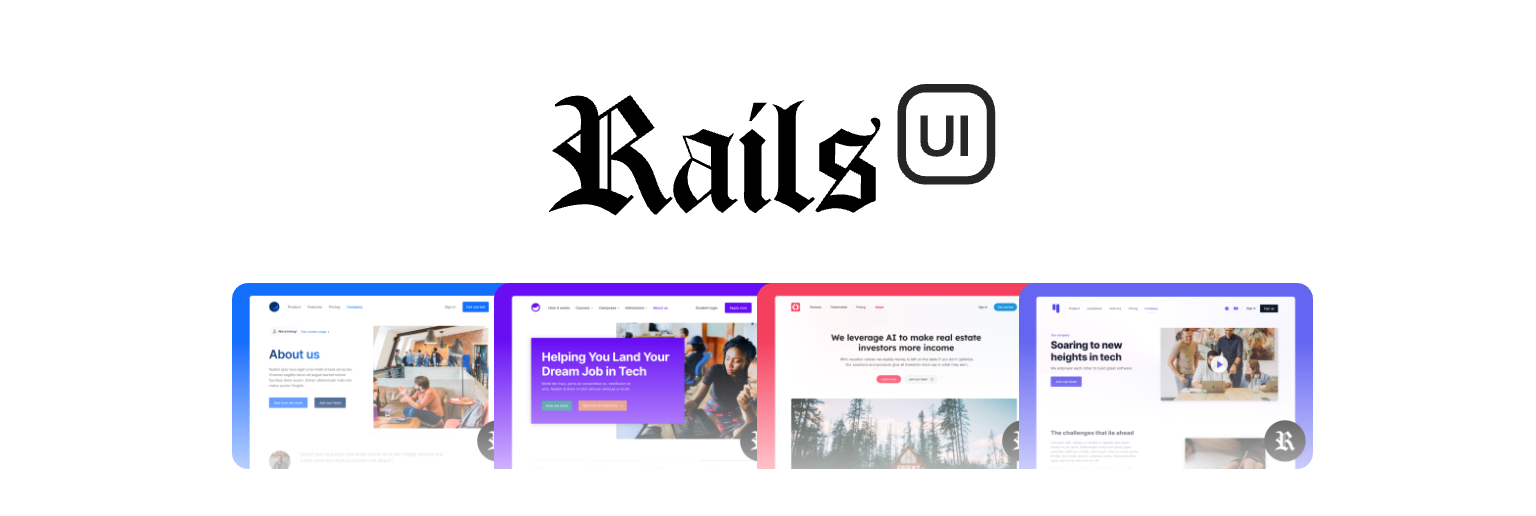
Rails UI
The product UI system for Rails SaaS builders. Complete app kits and the Rails-native components behind them, in clean ERB and Tailwind, so you ship a finished product instead of a blank page.
Links
- Installation
- Configuration
- Migration guide
- Extended documentation
- FAQs
- Discussions
- Updates
- Website
- Follow on X
- Migrating from v2
Installation
Rails UI v3.3+ now works with both importmap (nobuild) and JS bundler (build) setups. It uses the tailwindcss-rails gem for CSS in both modes so no separate Tailwind installation needed.
Requirements
- Rails: 7.0 or higher
- CSS: ✅ Automatically handled via
tailwindcss-railsgem (included) - JS (build mode): Node.js, package manager (yarn/npm/pnpm/bun), and jsbundling-rails
- JS (nobuild mode): Nothing extra needed!
Intalling Rails UI on new applications
With importmaps (nobuild) - default
# Create app (Rails 8 defaults to importmap)
rails new myapp
cd myapp

# Install Rails UI
bundle add railsui
rails railsui:install

# Start server
bin/dev
When to use: Zero build step, no Node.js required, fast refresh.
With JS Bundler (build mode)
# Create app with JS bundler
rails new myapp -j [bun|esbuild|rollup|webpack]
cd myapp

# Install Rails UI with --build flag
bundle add railsui
rails railsui:install --build

# Start server
bin/dev
When to use: TypeScript, advanced JS tooling, or complex dependencies.
Note: When you run rails new myapp -j esbuild (or other bundler), you may see build errors about missing packages. This is expected - the initial build runs before dependencies are installed. These errors are harmless and will be resolved when Rails UI installs the required packages.
[!IMPORTANT] Don't use
-c tailwindwhen creating your app like in previous versions of the gem - Rails UI handles Tailwind CSS automatically now using the tailwindcss-rails gem.
Installing Rails UI on existing applications
Importmaps (nobuild)
bundle add railsui
rails railsui:install
Apps with a JS Bundler (esbuild, webpack, bun, rollup)
bundle add railsui
rails railsui:install --build
Apps without any JavaScript setup
Importmap:
bundle add railsui
rails railsui:install
JS Bundler:
# First install jsbundling-rails
bundle add jsbundling-rails
rails javascript:install:[bun|esbuild|rollup|webpack]
# Note: You may see build errors - this is expected and harmless

# Then install Rails UI
bundle add railsui
rails railsui:install --build
Migration scenarios
If you use an older version of Rails UI or have cssbundling-rails gem configured you can move to the new version with our built in migration task.
Migrating from cssbundling-rails
If your app uses cssbundling-rails for Tailwind (installed with rails new myapp -c tailwind):
# Install Rails UI first
bundle add railsui
rails railsui:install

# Then migrate to tailwindcss-rails
rails railsui:migrate_to_tailwindcss_rails
This removes Tailwind from package.json and switches to the faster tailwindcss-rails gem.
Migrating from importmaps to JS Bundler
If your existing app uses importmap and you want to switch to a JS bundler for Rails UI:
# First install jsbundling-rails
bundle add jsbundling-rails
rails javascript:install:[bun|esbuild|rollup|webpack]

# Then install Rails UI with --build flag
bundle add railsui
rails railsui:install --build
[!IMPORTANT] You'll need to manually migrate your existing JavaScript imports from importmap format to bundler format. Rails UI will handle its own imports, but your app's custom JavaScript may need adjustments. Consider removing
config/importmap.rbif you're fully migrating to the bundler.
Switching between build modes
You can change modes after installation by editing config/railsui.yml:
build_mode: nobuild # or "build"
Then run the appropriate setup:
rails railsui:update
Installation Warnings
Rails UI detects your setup and tries to provide helpful guidance:
- ⚠️ cssbundling-rails detected → Suggests migration task
- ⚠️ Missing jsbundling-rails (with --build flag) → Shows setup instructions
- ℹ️ Configuration conflicts → Provides recommendations
Skip warnings: RAILSUI_SKIP_WARNINGS=1 rails railsui:install
Running Your App
After installing Rails UI, start your server:
bin/dev
Then visit localhost:3000/railsui to access the configuration screen and customize your install.
What bin/dev does
- nobuild mode: Runs Rails server + Tailwind CSS watcher
- build mode: Runs Rails server + Tailwind CSS watcher + JS bundler watcher
Both modes use the same rails tailwindcss:watch command for CSS.
Configuration
Rails UI is configured via config/railsui.yml or the admin UI at /railsui. The easiest way to configure Rails UI is to visit localhost:3000/railsui and follow the prompts.
Quick Configuration
After installation, visit localhost:3000/railsui to configure:
- Application name and support email
- Theme selection
- Preview enabled pages for your theme
- Preview your theme.css file found in
app/assets/stylesheets/railsui/theme.css
Configuration Files
config/railsui.yml- Main configurationapp/assets/stylesheets/railsui/theme.css- Color palette customization and Tailwind CSS configuration.
📚 For detailed configuration options, read the configuration guide
Important Notes
Each app kit comes with pages in app/views/rui that are treated as read-only. Updating your configuration will overwrite these files. To customize pages, copy them to your app:
cp app/views/rui/pages/dashboard.html.erb app/views/pages/dashboard.html.erb
App kits
App kits are the core of Rails UI: complete product surfaces for a kind of SaaS, combining real screens, UI components, assets, JavaScript, and color palettes. Pick the app kit closest to what you are building, keep the screens that fit, and customize the rest.
Note: on railsui.com these are called app kits. Inside the gem and its config they are still referred to as themes (for example
Railsui.config.themeandapp/assets/stylesheets/railsui/theme.css), so you will see both terms.
App kits serve as a starting point for your app, with reusable components extracted for flexibility. These components are ready for use inside your application when you install Rails UI.
Pages
A page is a professionaly designed starting point. They are completely optional to use and can save a lot of time if your app uses similar layouts and patterns.
Pages are located in the app/views/rui directory and are considered read-only. If you want to keep your changes after modifying your Rails UI configuration and saving changes, you'll need to copy the files to your application in another view directory.
More pages will be added over time.
Included assets
Each app kit comes with a collection of assets to help you get started. Much of these are placeholders and are not meant to be used in production. We strive to still create realistic examples for you to use as a starting point.
UI components
After installing Rails UI and choosing an app kit you'll find a collection of components and best practices for real-world applications at your disposal.
Color
Each app kit comes with a custom color palette built on top of the default Tailwind CSS v4 color palette you can customize in app/assets/stylesheets/railsui/theme.css.
Icons
Bundled with Rails UI is a gem called railsui_icon. This gem includes a collection of icons that are used in all app kits. Right now it's based soley on heroicons and will be expanded to include more icons in the future.
JavaScript
All Rails UI components are built on top of Stimulus.js. An app kit includes custom Stimulus controllers and our own JavaScript library called railsui-stimulus which is just an extraction of components we find ourselves using in our own apps and between app kits.
Updates
Run bundle update railsui from within your project and it should fetch the most recent version of the gem/engine directly from GitHub.
Legacy v2
Version 2 of Rails UI has since been sunset. Unfortunately, there is no upgrade path we can share.
Version 3 was a rewrite of the gem and how Rails UI works to enable better flexibility. Version 3 offers the ability to swap app kits, install on new and existing rails apps, and countless other smaller features. We chose this direction to enable more efficient development in the future and allow folks with existing apps the ability to use Rails UI.
You can find version 2 on a dedicated branch on the Github repo. If you're an active user of this version be sure to update your Gemfile with the appropriate branch.
gem "railsui", github: "getrailsui/railsui", branch: "v2"
v3+
Version 3 now resides on the main branch accessbile via the main branch and/or rubygems.org.
gem "railsui"
Frequently Asked Questions
Which build mode should I choose?
nobuild mode: Perfect for simpler apps, prototypes, or if you want zero build complexity. JavaScript loads from CDN via importmap.
build mode: Best for production apps with complex JavaScript needs, TypeScript, or when you need full control over bundling.
Both modes are equally capable - choose based on your JavaScript requirements.
Can I switch modes later?
Yes! Update config/railsui.yml and regenerate assets:
# Edit config/railsui.yml: build_mode: nobuild (or build)
build_mode: [nobuild, build]

# run this command to update assets
rails generate railsui:update
For more scenarios see the migration guide for instructions.
Do I need Node.js?
- nobuild mode: No Node.js required ✅
- build mode: Yes, Node.js and a package manager (yarn/npm/pnpm/bun) required
Where are the CSS files located?
Rails UI uses tailwindcss-rails v4 defaults:
- Input files: [
app/assets/tailwind/application.css,app/assets/stylesheets/railsui/*.css] - Output file:
app/assets/builds/tailwind.css - In layouts:
stylesheet_link_tag "tailwind"
Both build and nobuild modes use the same CSS paths. The only difference between modes is JavaScript handling (importmap vs bundler).